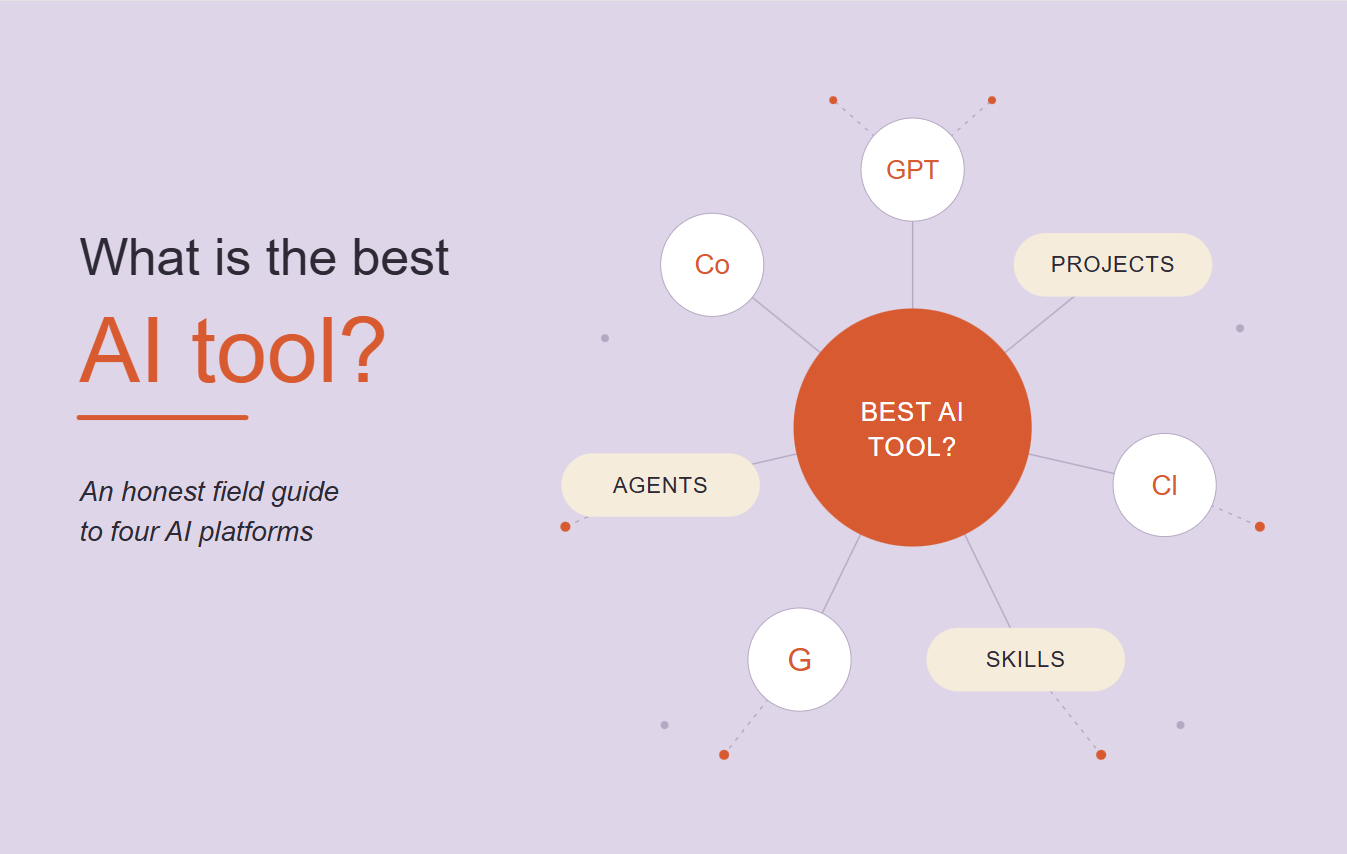
What is the best AI tool? An honest field guide to ChatGPT, Claude, Gemini and Copilot in 2026
Every week I get the same question. From in-house teams. From clients. From people who slide into my LinkedIn DMs at 11pm on a Tuesday. “Sarah, what is the best AI tool?”
I get it. There are four big platforms with about 10 sub-tools each, half of them with overlapping names…
- Both ChatGPT and Gemini have something called Canvas
- Both Claude and Copilot have something called Notebooks
- ChatGPT alone has GPTs AND Projects AND Skills AND Canvas AND Deep Research AND Operator AND Agent Mode
- Claude has Projects AND Skills AND Agents AND Artifacts AND Code AND Cowork
The naming is honestly insane.
Boy oh boy, the comments section on every ‘which AI tool is best’ LinkedIn post has become the marketing version of the Hunger Games. Pick your fighter. Defend your choice. Watch someone in the replies tell you you’re wrong.
So here’s my hot take. There is no single ‘best’ AI tool, because most people asking that question are mixing up two different things. Let’s fix the language first.
Quick language fix: platforms vs tools
When you say ‘AI tool’, what do you actually mean?
Do you mean ChatGPT, Claude, Gemini or Copilot? Those are PLATFORMS. The four big systems built by OpenAI, Anthropic, Google and Microsoft.
If you mean Projects, Custom GPTs, Skills, Agents, Canvas, Notebooks, Artifacts or Operator, then those are TOOLS. The features that live INSIDE each platform.
Most marketers conflate the two, which is exactly why the answer to ‘what is the best AI tool’ feels impossible to pin down. You’re not picking ONE thing. You’re picking a platform AND choosing which tools inside it match the work in front of you.
Now we can actually talk about it.
But before any tool-by-tool breakdown, there’s one technical thing nobody tells you. And it changes how you use every single tool below.
The one technical thing that actually matters
Pay attention. This is the bit no LinkedIn AI guru is teaching you because it’s not sexy.
There are two ways AI platforms take input from you. They behave completely differently depending on that input. Most marketers don’t know the difference and it’s quietly sabotaging their outputs.
Instructions (the system prompt, the project instructions box, the Custom GPT instructions field) get injected directly into every single prompt. Always. Unconditionally. If you write ‘always use Australian English’ in the instructions box, the model sees that on every output.
Uploaded files (the knowledge base, the project files, the notebook sources) work via something called retrieval augmented generation (RAG). The system breaks your file into chunks, decides which chunks are ‘relevant’ to your question and loads only those chunks. If your question doesn’t trigger the right relevance signal, your style guide just sits there unread. The model proceeds without it.
Translation… if you want the AI to do something on EVERY output, put it in the instructions field. If you want it to have access to reference material it can pull on demand, put it in files.
The number of in-house marketers I see uploading their 40-page brand guidelines as a PDF and then complaining the output sounds nothing like their brand? So many. SO many!
Same tools, different names
Before we go into a platform by platform tool breakdown, here’s the thing that’ll save you 20 minutes of confusion. Every platform basically has the same set of tool categories under the hood. They just call them different names.
ChatGPT’s Custom GPTs do the same job as Gemini’s Gems. ChatGPT’s Projects do the same job as Claude’s Projects and Gemini’s Notebooks. Operator (ChatGPT) and Cowork (Claude) are cousins from different families. Once you’ve got the categories down, the rest is translation.
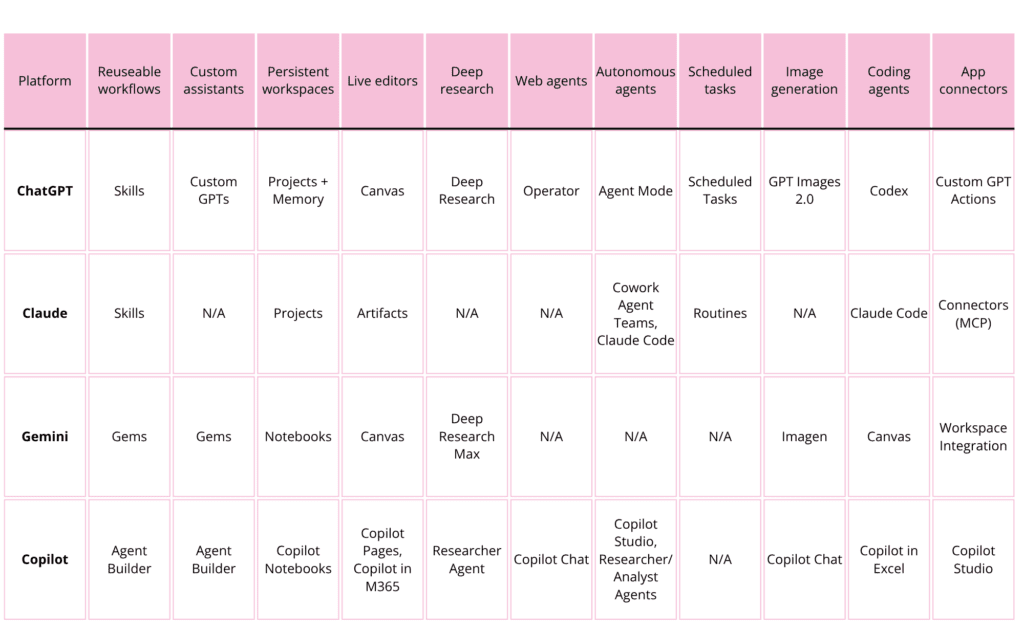
Eleven categories show up across the four platforms.
- Reusable workflows. A procedure that runs INSIDE a normal chat. It can fire automatically when the AI spots the right trigger, or you can call it by name to invoke it manually (‘use the bug report skill’). You don’t open a workflow as a separate thing. It just runs inside whatever chat you’re already having. The recipe, not the chef. Use it when the same input should produce the same output every time. Bug reports formatted into Jira tickets. Briefs converted into your standard template.
- Custom assistants. A specialist you actively OPEN to start a new chat with. Has a persona, knowledge base and instructions baked in from message one. The chef, not the recipe. You’re calling up a specific expert. Brand voice writer. SEO brief generator. Customer support triage bot. Use it when you want the same expertise applied to many different conversations.
Worth flagging: the line between these two genuinely gets blurry on some platforms. Gemini’s Gems can act as either depending on how you configure them. That’s why Gems appears in both columns of the table below.
- Persistent workspaces. Workspaces that REMEMBER. Conversations inside one carry forward to the next, so you’re not re-explaining your client’s brand strategy every Tuesday. Use it for ongoing work that spans weeks. One workspace per client is the workflow that actually scales.
- Live editors. A side panel where the AI renders documents, code or interactive apps that you can edit in real time. Highlight a paragraph, ask for a tone change, watch it happen. Use it for long-form writing or anything you’d otherwise paste into Google Docs to iterate.
- Deep research. An autonomous research agent that browses hundreds of web sources and comes back with a multi-page report (with citations). Use it when you need to FIND information you don’t have yet. Competitive intelligence, market analysis and industry deep-dives.
- Web agents. An agent that goes onto websites and actually clicks the buttons, fills the forms and does the task. Form submissions. Bookings. Pulling data off pages. Use it for the manual web admin you’re sick of doing yourself.
- Autonomous agents. You hand it a goal. It figures out the steps. The big difference from a workflow? The path to the goal isn’t fixed. The agent decides what to do next based on what just happened. Use it for jobs where you’d otherwise chain three or four tools together manually.
- Scheduled tasks. Schedule the AI to run something automatically. Daily, weekly, monthly. Use it for the recurring stuff: morning briefings, weekly content prep and end-of-month report summaries.
- Image generation. Native image generation built into the platform. Text-to-image, photo editing, infographics and mockups. Use it for marketing visuals, social content and concept work that doesn’t need a designer.
- Coding agents. A dedicated coding agent your dev team runs in their terminal. Writes features, fixes bugs, runs tests, ships code. Not for marketers. If you’re not a developer, skip this row and use a live editor instead.
- App connectors. The layer that connects the AI to your live external tools (Slack, Gmail, Notion, Jira, the lot). Lets it READ your real data, WRITE actions (send emails, create tickets) and TRIGGER workflows. Use it any time you want the AI working on the current state of your stack, not on static file uploads.
Here’s how those categories map across the four platforms.
ChatGPT tools and when to use them
ChatGPT has the broadest and most mature tool set of the four platforms. Eleven distinct features, each solving a specific workflow problem. Here’s what they do and when to reach for each one.
Custom GPTs
Custom GPTs are reusable specialists. You build one once, package up its persona, instructions, knowledge files and API integrations, then call it up whenever you need that specific behaviour. Brand voice writer. SEO brief generator. Customer support triage bot. Once it’s built, it does the same thing every time.
Use a Custom GPT when you have a repeatable task you do across many different contexts and want the assistant to behave the same way every time. Critically? A Custom GPT does NOT remember previous conversations. Every chat starts fresh.
Projects
Projects are persistent workspaces inside ChatGPT. They group related conversations, files and instructions together. And unlike Custom GPTs? They REMEMBER. Every conversation inside a Project carries forward into the next one.
Use a Project when you’re running multi-week work (a campaign, a client engagement, a research effort) and you need ChatGPT to remember context without you re-uploading everything every session. Plus and Pro users get ‘improved project memory’ where ChatGPT actively prioritises project chats and files in retrieval.
ChatGPT Projects vs Custom GPTs (the question everyone’s googling)
Right. The big one. Projects vs customgpts, custom gpts vs projects, gpts vs projects, chatgpt projects vs gpts, difference between project and chat in chatgpt. Genuinely the most confused topic in AI marketing right now and I’m going to settle it.
Here’s the difference, in one sentence each.
A Custom GPT answers the question: ‘How should the assistant behave?’
A Project answers the question: ‘Where does the work live and what’s happened so far?’
That’s it!
The cleanest mental model? Custom GPTs are tools you keep in a drawer and pull out for specific jobs. Projects are rooms you walk into where the work stays put.
Custom GPTs share publicly via the GPT Store. Projects are personal or team workspaces. Custom GPTs forget every conversation. Projects remember. Custom GPTs are about HOW. Projects are about WHERE.
Need both? Build a Custom GPT for the behaviour, then use it inside a Project for the memory. Yes, you can do that.
Skills
Skills (currently in beta on ChatGPT Business, Enterprise and Edu plans) are reusable workflows that fire automatically when ChatGPT detects the right context. Less ‘persona’, more ‘procedure’. Less ‘hi I’m the brand voice writer’, more ‘when you see a bug report, format it like THIS’.
Quick analogy. A Skill is the recipe. A Custom GPT is the chef. A Project is the kitchen.
Use a Skill when you want to standardise a specific procedure that triggers automatically. Skills follow the open Agent Skills standard, so a Skill built for one platform can install in another.
Canvas
Canvas is ChatGPT’s side-by-side document editor. Instead of receiving a wall of text in chat, Canvas opens a live document panel where you can directly edit, highlight specific sections for targeted AI revision, debug code and restore previous versions.
Use Canvas for any long-form writing or coding task where you’d otherwise be copy-pasting into Google Docs to iterate. React and HTML code runs live in a preview pane, so you can see the working result instantly, not just the code.
Deep Research
Deep Research is ChatGPT’s autonomous research agent. It browses hundreds of web sources over an extended session and produces structured, multi-page reports with citations. You can edit the research plan before it runs, pause mid-search to redirect focus and target specific websites or connected apps as sources.
Use Deep Research for competitive landscape work, market research reports and industry deep-dives. As of early 2026 it runs on GPT-5.2 and is significantly faster than the original.
Operator
Operator is OpenAI’s web-browsing AI agent. It autonomously navigates websites, clicks buttons, fills forms and completes real-world tasks on your behalf, narrating what it’s doing so you can monitor and interrupt.
Use Operator for repetitive web-based tasks (form submissions, bookings, data collection) you’d otherwise do manually. It runs in a dedicated browser session.
Agent Mode (ChatGPT Agent)
Agent Mode is the unified agentic capability that combines Deep Research, Operator-style computer use and code execution into one continuous workflow. Browse the web, run code, generate files, interact with apps, book appointments, update spreadsheets… all in one session.
Use Agent Mode when you’d otherwise have to chain several tools together manually. An example prompt is ‘research competitors, build a comparison table and create a slide deck’.
Scheduled Tasks
Tasks let you schedule ChatGPT actions to run in the future or at recurring intervals. Daily, weekly, monthly.
Use Scheduled Tasks for daily briefings, weekly content generation, recurring report summaries… anything you currently run manually on a schedule.
Memory and Custom Instructions
These are two complementary personalisation tools. Custom Instructions are static directives applied globally to every conversation (reliably applied, like a persistent system prompt). Memory lets ChatGPT retain facts and preferences across conversations over time.
Use Custom Instructions for your consistent professional context (‘I’m a marketing strategist in Melbourne. Always write in Australian English.’). Enable Memory to stop re-explaining preferences with each conversation.
Worth knowing: Custom GPTs operate in isolation and do NOT access your Custom Instructions or Memory. Spent six months training Memory? It doesn’t help inside a Custom GPT.
Image Generation (GPT Images 2.0)
This is native image generation inside ChatGPT. It generates images from text prompts, edits uploaded photos, and creates product photography variations, infographics and design mockups.
Use it for marketing visuals, social content and concept work. The model renders text (the thing that used to break every AI image tool) accurately and maintains consistency across iterative edits.
For high-end artistic quality, Midjourney is still stronger. However, ChatGPT’s image tool excels at text rendering, precision edits and conversational iteration.
Codex
Codex began as OpenAI’s coding-specialist agent, designed to help developers write features, debug software, run tests and manage multi-file refactors through tools like a CLI, IDE extension and dedicated app experience. However, Codex is now evolving into a broader AI-powered work assistant in the ChatGPT ecosystem.
As well as software engineering tasks, it can now connect to workplace tools like Google Drive, Slack, calendars, spreadsheets and CRMs to research information, analyse data, draft reports, summarise meetings and automate recurring workflows.
For developers, Codex still functions as an autonomous coding agent. But for broader business teams, it’s increasingly being positioned as the engine behind AI-powered productivity and workflow automation tools, including Workspace Agents.
Wokspace Agents
Workspace Agents are built on top of Codex and are more team-focused. Rather than being a personal assistant, they’re shared AI workflows that live inside a company workspace and are designed for ongoing, collaborative functions.
Teams can build an agent and deploy it across ChatGPT or Slack so multiple people can use it. These agents can run on schedules, respond automatically to requests, follow workflows and even ask for approval before taking actions like sending emails or updating spreadsheets.
Teams could use agents to monitor campaign performance, compile weekly reporting, summarise customer feedback, draft personalised outreach, manage lead qualification, track content approvals, or surface insights from multiple platforms in one place. For example, a marketing team could create an agent that automatically pulls campaign metrics every Friday, drafts a performance report, and posts it into Slack for the entire team to review.
Claude tools and when to use them
Claude’s tool set is built around interlocking building blocks. Projects, Artifacts, Skills, Connectors, plus a developer agent layer in Claude Code. There are eight tools to know.
Projects
Projects in Claude are persistent, isolated workspaces holding custom instructions, uploaded knowledge files and all related conversations. Every conversation inside a Project inherits the project’s instructions and has access to the project’s files.
Use a Project for any context-heavy work where rebuilding context each session is a waste of time. One Project per client is a beautiful workflow!
A quick note on how files work inside Projects. Upload a handful and Claude keeps them all in mind from the start of every chat. Upload a heap and it starts being selective, only pulling in the chunks it judges relevant to your question (back to RAG behaviour). Your project instructions fire on every output either way. But the file content? Reliable when you’ve got a few. Less reliable when you’ve got many.
Artifacts
Artifacts is Claude’s live output environment. A side panel where Claude renders code, documents, SVGs, React components, interactive apps and spreadsheets in real time. Instead of receiving code or content as text, you see a working interactive form, chart, dashboard or formatted document immediately.
Use Artifacts any time you want a working OUTPUT rather than just code. Building a registration form, a quiz, a data viz, a mini-app… Artifacts is the tool. This is Claude’s equivalent of Canvas with the added power of rendering fully functional interactive apps. You can preview, iterate, download and share via a link.
Skills
Claude Skills (the originator of the Agent Skills open standard now adopted by ChatGPT, Cursor and GitHub Copilot) are reusable instruction packages Claude invokes automatically when context matches. A Skill is a SKILL.md file containing instructions, examples and (sometimes) executable scripts.
Use a Skill for any task you perform more than once a week with consistent output requirements. This includes procedure-shaped work, a code review checklist, a content formatting standard or a fixed reporting template.
Claude Skills vs Agents (the other question everyone’s googling)
This is the same question as the GPTs vs Projects one. But a totally different answer.
A Claude Skill is a procedural recipe. Deterministic. Predictable. The answer to ‘I want this exact process to run the exact same way every time.’
A Claude Agent is autonomous task execution. You hand the agent a goal. It figures out the steps. It loops. It retries. It iterates without you telling it what to do next at every turn.
So what’s the answer when someone asks me about ‘Claude Skill vs Agent, Claude Code Skill vs Agent, Claude Code Skills vs Agents, Claude Agents vs Skills’?
Use a Skill when the workflow is known and you want consistency. The output format is fixed. The steps repeat. You want it to fire automatically when the conversation calls for it.
Use an Agent when the path to the goal is uncertain. The agent needs to decide what to do next based on what just happened. Here you’re handing over judgement, not just procedure.
Skills and Agents work together. The agent is the engine. Skills are the playbooks the engine pulls off the shelf when it needs them. Claude Code is an agent that uses Skills. Cowork is an agent that uses Skills. Agent Teams is a swarm of agents that use Skills.
Connectors (MCP)
Connectors, built on the Model Context Protocol (MCP), are Claude’s integration layer of standardised connections to external tools and services.
Via MCP, Claude can connect to Gmail, Google Drive, Notion, Slack, GitHub, Jira and 50+ other tools. Connectors let Claude READ live data (documents, tickets, logs), WRITE actions (create PRs, send emails) and TRIGGER workflows.
Use Connectors any time you want Claude working on the real, current state of your stack instead of static uploads. The combination of Skills (procedural knowledge) plus MCP (live tool access) is the most powerful agentic setup of any platform right now.
Claude Code
Claude Code is the developer version of Claude. Your dev team runs it in their command line (the text-only interface coders type into, not a chat window) and it works as a full software engineer. It writes new features, fixes bugs, runs tests and ships code to your codebase. Skills, MCP Connectors and sub-agents all plug in.
Use Claude Code if you’re a developer who wants an autonomous coding agent integrated into your dev environment. Non-technical users? Use Artifacts.
Cowork
Cowork is Claude’s agentic product for non-technical knowledge workers, offering multi-step, file-handling capabilities in a simplified interface.
Give it a goal and it works on your computer, local files and applications to return a finished deliverable. Cowork Projects add persistent, session-spanning context.
Use Cowork for complex knowledge work tasks requiring multiple steps and file manipulation (data analysis, mining data across documents, building marketing tools) without needing a terminal. It’s the closest non-developer parallel to ChatGPT’s Agent Mode.
Extended Thinking
Extended Thinking enables Claude to perform explicit chain-of-thought reasoning before responding, with visible thinking steps.
Use it for complex analysis, strategic frameworks, mathematical reasoning or any task where the QUALITY of the reasoning chain matters more than response speed. Available across the Claude lineup with toggle controls in the chat interface.
Agent Teams
This is a multi-agent orchestration system (Claude Opus 4.6+) that spawns multiple specialised parallel agents (researcher, strategist, copywriter and reviewer) coordinated by a supervisor agent.
Use Agent Teams for large-scale, multi-dimensional projects where a single agent session would compromise quality such as a complete content strategy, a full codebase refactor or a multi-part research project. Reserve it for tasks a single agent genuinely can’t handle well. But a word of warning: most jobs don’t need this and you’ll burn through your usage limits fast.
Gemini tools and when to use them
Gemini’s tool set expanded significantly in 2026 with the integration of NotebookLM and new model tiers. There are six tools to know, and the Google Workspace integration is the killer feature most marketers undervalue.
Gems
Gems are Gemini’s custom AI experts; reusable assistants configured for specific tasks, personas or workflows. You write the instructions, optionally anchor them to specific Google Drive files and the Gem applies your customisation consistently. Google ships pre-built Gems (coding partner, writing editor, career guide) and you can build your own.
Use a Gem for repetitive predefined workflows requiring consistency (such as formatting, editing, structured outputs). The Gemini equivalent of a Custom GPT.
Heads up: Gems do NOT retain memory between sessions. Each conversation starts fresh. The value is in the consistent configuration, not in remembered context.
Notebooks (NotebookLM integration)
As of April 2026, Google integrated NotebookLM directly into the Gemini app as a Notebooks feature in the sidebar. Notebooks function as personal knowledge bases. You add sources (PDFs, Google Docs and websites), set custom instructions that apply across every chat in the notebook, and Gemini reasons over those sources for all responses.
Use a Notebook when you’re collecting sources for a research project over time. Competitor intelligence. Industry trend tracking. The 47 whitepapers you’re trying to extract a single coherent point of view from. Paid plans give you up to 300 sources per notebook (which is a LOT) and because Notebooks sync with NotebookLM in the background, you get Audio Overview and Cinematic Video Overview thrown in.
The Gemini Notebook is the closest thing in any platform to a true ‘second brain’ for project work. If you’re doing research work where curated, controlled sources matter more than open web search, this is your tool.
Canvas
This is Gemini’s interactive side-panel workspace for creating and editing documents and code in real time. Quick editing tools let you highlight text and change tone, length or formatting. HTML and React code renders live. A Canvas exports directly to Google Docs or Google Colab with one click.
Use Gemini Canvas for writing and editing long-form documents or web prototypes. How does it compare to ChatGPT Canvas? The direct Google Docs and Colab export is the killer feature if you live in Workspace. ChatGPT Canvas has stronger code execution inside its sandbox. Pick based on where the output ultimately needs to land.
Deep Research (Deep Research Max)
Gemini’s autonomous research agent is now in its second generation (Deep Research Max) on Gemini 3.1 Pro. It browses hundreds of web sources and produces multi-page reports with citations. Added in 2026: MCP support for custom data sources, native chart and infographic generation inline with the report and collaborative planning before execution.
Use Deep Research Max for competitive intelligence, market research and any project where you need both web sources and data integration in one report.
Deep Research vs Notebooks? Deep Research generates a report from the open web in one session. Notebooks accumulate YOUR own curated sources over time. Use Deep Research to FIND new information. Use Notebooks to ORGANISE and reason over information you already have. Different jobs, often complementary.
Audio Overview
Audio Overview converts your documents, research or notebook sources into an engaging podcast-style conversation between two AI hosts. It’s available in 50+ languages.
Use it for catching up on lengthy reports while commuting, synthesising research materials in an accessible format or creating audio briefing content for a team. Genuinely one of my favourite small-but-clever AI features of the last 18 months. Why? Strategy docs hit differently when they sound like a podcast you’d actually subscribe to.
There’s also a Cinematic Video Overview equivalent now if you want visual generation along with the audio.
Gemini in Google Workspace
Here Gemini is embedded natively across Google Workspace, including Docs, Sheets, Slides, Gmail, Meet and Drive. It’s the ‘always-on AI’ experience for anyone who lives in Google’s stack.
Use it any time you’d otherwise switch tabs to ChatGPT and paste content back and forth. Particularly powerful for Gmail summarisation (the inbox triage flow alone saves me hours every week), Google Sheets data analysis, Google Slides image generation and Meet meeting notes.
If your company runs on Google Workspace, this is the tool that makes Gemini a no-brainer addition to your stack. The native integration into apps you already use is the same advantage Microsoft Copilot has inside M365, just inside Google’s stack instead.
Microsoft Copilot tools and when to use them
Quick foundational note. Microsoft Copilot is actually two products that share a name and routinely confuse the entire industry.
Microsoft Copilot (Free/Pro) is the consumer general AI assistant grounded in Bing.
Microsoft 365 Copilot is the enterprise productivity layer grounded in YOUR organisation’s Microsoft Graph (emails, calendar, Teams meetings and SharePoint).
The second one is the one most marketers in corporate roles will actually be using. Pricing differs (~$22/month consumer Pro vs ~$30/user/month for M365). Capability differs more. There are six tools to know, and the apps integration is the differentiator no other platform can match.
Copilot Chat
This is the core chat interface, available in both consumer and enterprise versions. Consumer Copilot Chat is web-grounded via Bing (general research, content generation, image generation, code help, translation). Enterprise Copilot Chat additionally grounds responses in your Microsoft Graph (your emails, calendar, Teams meetings and SharePoint files).
Use Copilot Chat as your starting point in either product. The enterprise version is where Copilot pulls ahead of the others, because no other platform can answer ‘what did Sarah say in last Tuesday’s exec meeting about the Q4 plan?’ off your actual organisational data.
Copilot in Microsoft 365 apps
This is the Copilot embedded natively within each Microsoft 365 application and it’s Copilot’s single biggest differentiator. Unlike ChatGPT and Claude, which remain external tools, Copilot is INSIDE your apps. Here’s what you can do and where:
- Word: Draft a document from a prompt, rewrite, summarise, adjust tone
- Excel: Analyse data, generate formulas, build charts, access Python support for advanced analysis
- PowerPoint: Convert Word documents to slides, generate presenter notes, create visuals from text
- Outlook: Summarise email threads, draft replies, manage calendar invites
- Teams: Generate real-time meeting summaries, action item extraction, consecutive interpretation across languages
Use it any time you’re already inside an M365 app and want AI assistance without switching tools or copy-pasting between tabs. Requires a paid M365 Copilot licence per user.
Copilot Pages
Pages is Copilot’s shared canvas, a collaborative, persistent document workspace where teams can co-create content with AI. Turn a Copilot chat output into a shareable, editable document. In Agent Mode, Copilot manages the full structure (section creation, formatting, transitions) without constant user input. Work IQ can generate interactive visuals and apps directly within Pages.
Use Copilot Pages for turning a research session into a shareable team document, or co-authoring content where Copilot manages the structure while humans add the substance.
The Copilot equivalent of Canvas (ChatGPT/Gemini) or Artifacts (Claude), with collaboration baked in by default rather than bolted on after.
Copilot Notebooks
An AI workspace where you add curated references (Word docs, PowerPoints, PDFs, OneNote and SharePoint sites) and Copilot answers questions grounded in ONLY those sources. Unlike Copilot Chat (which draws from the full web or your entire Microsoft Graph), Notebooks scope Copilot to only the sources you’ve added.
Features include focused Q&A, audio overviews, mind maps, study guides (auto-generated quizzes and flashcards) and generating Word documents and PowerPoints directly from notebook content.
Use Copilot Notebooks for deal or project ‘war rooms’ (add all relevant documents and ask targeted questions without noise from unrelated content) and for learning or onboarding (upload training materials, generate study guides automatically). The same model as Gemini Notebooks, just inside the M365 universe.
Agent Builder and Copilot Studio
Two tools for creating custom AI agents, tiered by complexity.
Agent Builder is the lightweight in-app experience inside Microsoft 365 Copilot. Information workers create simple agents using natural language. Define a role, add knowledge sources (SharePoint, OneNote), deploy within your organisation. Built for marketers, ops people and team leads, not developers.
Copilot Studio is the full SaaS agent platform for sophisticated agents. Multi-step workflows, branching logic, external API integrations (Dynamics 365, SAP, Salesforce), enterprise governance controls and autonomous capabilities.
Use Agent Builder for simple Q&A agents from M365 data and small-team agents. Use Copilot Studio for complex multi-step workflows, external integrations, organisation-wide deployment and any agent requiring enterprise governance, versioning and role-based access controls.
Worth knowing: agents built in Agent Builder can be promoted to Copilot Studio without rebuilding from scratch. Start small and scale.
Researcher and Analyst Agents
These are pre-built specialist agents in Microsoft 365 Copilot. Researcher conducts multi-source research grounded in BOTH web data AND your Microsoft Graph (the only deep research agent that does this combination). Analyst processes data, builds visualisations and surfaces insights from your files.
Use the Researcher Agent when you need a research report that pulls from your internal documents AND external web sources together. Use the Analyst Agent for data work where the source data lives in your own M365 environment.
As of March 2026, Researcher supports multi-model intelligence. The ‘internal data plus external research’ combination is the M365 superpower. Other platforms simply cannot replicate it without months of custom integration work.
The decision framework we actually use at Content Rebels
Here’s how we choose AI tools for our clients. Steal it.
- Is this a one-off question? Use the chat. Any platform. Doesn’t matter.
- Do I need this behaviour on EVERY output, no exceptions? It goes in the instructions field. Custom GPT instructions, Project instructions, Gem instructions, Skill content. NEVER in a knowledge file alone.
- Is this a repeatable task with a fixed output format? Build a Skill (ChatGPT or Claude), a Gem (Gemini) or an Agent Builder agent (Copilot).
- Is this a repeatable task with a persona that I want to share with my team? Build a Custom GPT (ChatGPT), a Gem (Gemini) or an Agent Builder agent (Copilot).
- Is this ongoing work I’ll come back to over weeks? Use a Project (ChatGPT or Claude) or a Notebook (Gemini or Copilot).
- Am I writing or coding something I need to edit live? Use Canvas (ChatGPT or Gemini), Artifacts (Claude) or Copilot Pages (Copilot).
- Do I need a 30-page research report with citations? Deep Research (ChatGPT or Gemini) or Researcher Agent (Copilot).
- Do I need the AI to actually GO and DO something autonomously? Agent Mode/Operator (ChatGPT), Cowork (Claude) or Copilot Studio (Microsoft).
- Do I need it grounded in MY organisation’s actual data? That’s M365 Copilot, full stop.
- Do I need it integrated with live external tools (Slack, Notion, Jira, Gmail)? Connectors (Claude MCP), Custom GPT Actions (ChatGPT) or Copilot Studio (Microsoft).
That’s the whole framework.
So, what is the best AI tool?
You knew I’d come back to this.
The best AI tool is the one whose feature set matches the work you actually do, on the platform where your data already lives.
For marketers running content, research and writing? My personal stack is Claude (Projects + Artifacts + Skills) for thinking and building, ChatGPT (Projects + Custom GPTs + Deep Research) for production and research, and Gemini for anything that needs to land in Google Docs at the end. Three platforms. Different jobs.
For a corporate team locked into Microsoft 365? Copilot, full stop. The grounding in your own emails, files and Teams meetings is the thing none of the others can replicate without a year of integration work.
For developers? Claude Code or OpenAI Codex. Different flavours of the same idea.
For someone just starting out? Pick one platform. Use it daily for two weeks. Build one Project (or Notebook) and one Custom GPT (or Gem, or Skill). You’ll learn more about which platform fits your brain in 14 days of real use than you will from another six months of reading LinkedIn comparison posts.
The marketers who pick a platform and learn its tools deeply will run circles around the marketers still asking which platform to pick. That’s the actual answer.
Where this fits in your Search-First Strategy
A note for the people who came here from our other posts.
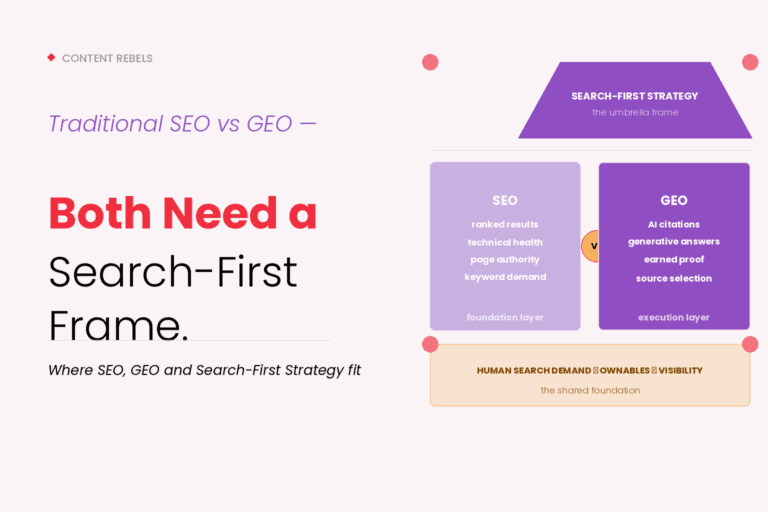
Tools matter. But tools alone won’t build your AI Content Engine. The platforms keep changing. The features keep getting renamed. The names overlap and the documentation lags six months behind the product. What stays consistent is the SYSTEM you wrap around the tools. Your Ownables. Your Consistency Stack. The Generative Engine Optimisation work that gets your brand cited inside ChatGPT, Gemini, Claude and Copilot in the first place.
If you’re picking AI tools without a Search-First Strategy underneath, you’re optimising the wrong thing.
Or… (dare I say it again) you could just talk to us.
We design, build and scale Search-First Content Ecosystems for marketing teams who want calm in the chaos. Including the AI tooling stack that actually fits your team, your data and the work in front of you.
Don’t be late to the party.

Founder of Content Rebels | Proud marketing and strategy nerd